
Knowing exactly which SQL Server version and build is running is foundational DBA work. It comes up during patching, incident response, audits, upgrades, and when engaging Microsoft support.
SQL Server exposes version information in several ways. Some are fast and visual, others are scriptable, and a few provide deeper installation detail when you need it.
This post walks through the reliable methods DBAs actually use, what each one tells you, and when each method makes sense.
Why SQL Server Version Matters
Version information is not just informational, it directly affects supportability, security posture, patch and CU planning, upgrade readiness, and how quickly Microsoft support can engage.
In complex support cases, Microsoft will often ask early on whether the instance is running the latest supported update or cumulative update. Being behind does not automatically block support, but in practice you are frequently asked to update before deeper troubleshooting continues.
Knowing your exact version up front avoids unnecessary delay and keeps conversations focused on the actual issue.
Quick Visual Check in SSMS
When working interactively, the fastest check is in SQL Server Management Studio.
After connecting to an instance, SSMS shows the version and build number next to the server name in Object Explorer.
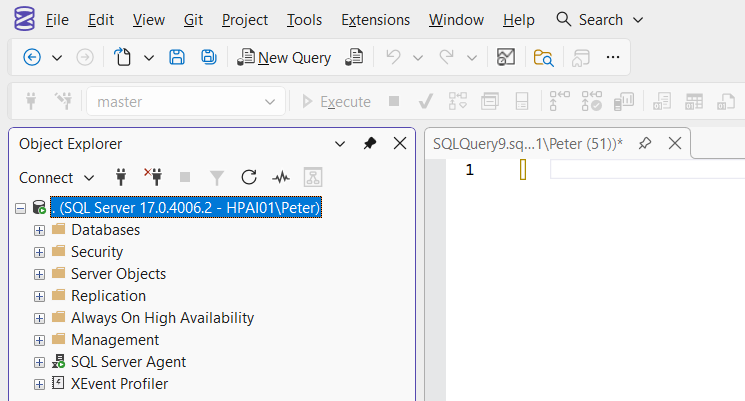
You can also right-click the server in Object Explorer, select Properties, and review the SQL Server version, edition, and configuration details in one place.
This is convenient for spot checks, but it requires SSMS access and is not suitable for automation or fleet-wide checks.
Preferred Method: Query the Instance
For anything repeatable or verifiable, querying the instance directly is the most reliable approach.
Structured version query
-- Return SQL Server version, patch level, and edition
SELECT
    SERVERPROPERTY('productversion') AS ProductVersion,
    SERVERPROPERTY('productlevel')   AS ProductLevel,
    SERVERPROPERTY('edition')        AS Edition;
This is the query most DBAs rely on. It returns the running version, patch level, and edition.
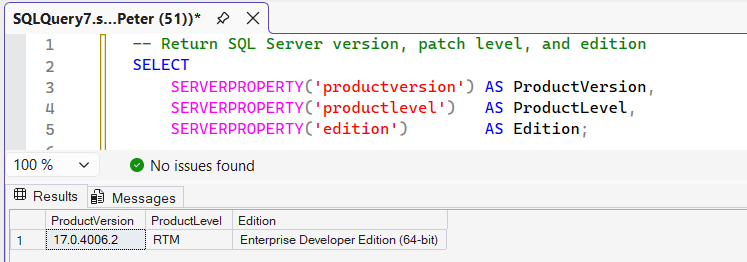
This method is ideal for automation, compliance checks, scripting, and confirming what is actually running when preparing updates or engaging support.
Full version string
SELECT @@VERSION;This returns a descriptive string including SQL Server and operating system details.

It is useful for quick context, but less practical when you need structured or machine-readable output.
Checking Version via Log Files
There are cases where querying the instance is not possible. In those situations, log files remain a reliable fallback.
SQL Server error log
The SQL Server error log records the full version and build number every time the service starts.
This is useful when:
- The instance is failing to start
- Connectivity is unavailable
- Verifying a restart after patching
- Investigating legacy or partially removed installs
Because it reflects what actually started, it is often more trustworthy than installation records or inventory data.
Setup summary log
SQL Server setup also records version information during installs and upgrades.
C:\Program Files\Microsoft SQL Server\<version>\Setup Bootstrap\Log\Summary.txt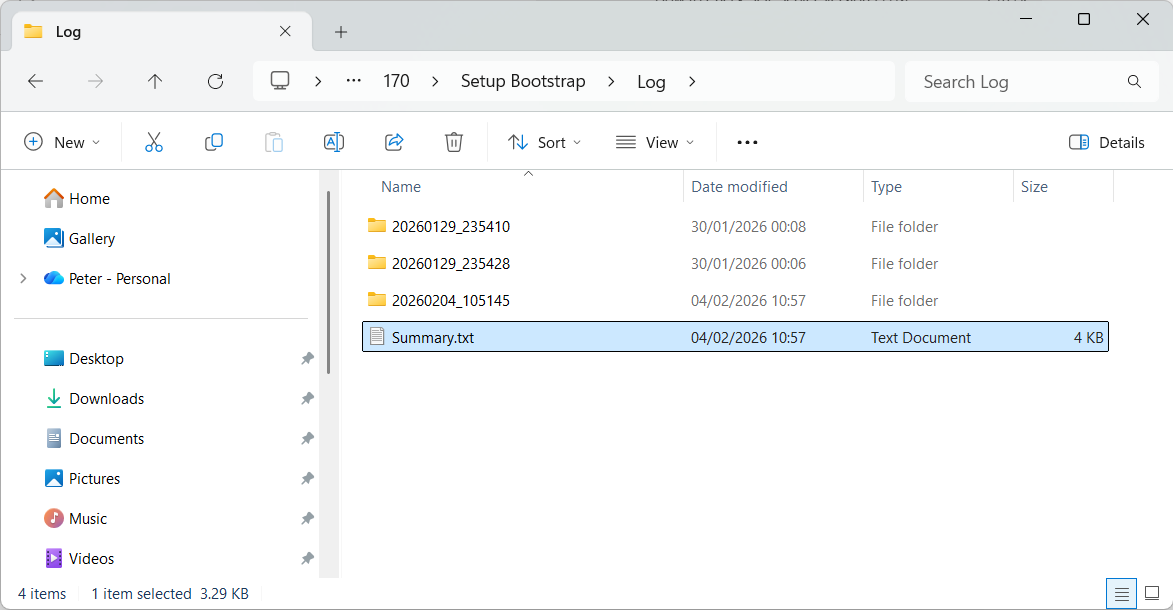
This confirms what was installed or upgraded, which is helpful for audits and change tracking, but it should not replace checking the running instance.
SQL Server Feature Discovery Report
The Feature Discovery Report provides a broader view than the methods above.
Instead of focusing only on the Database Engine, it shows which SQL Server features are installed, their versions, and whether components are instance-specific or shared.
To run it, open the SQL Server Installation Center, go to Tools, and select Feature Discovery Report.
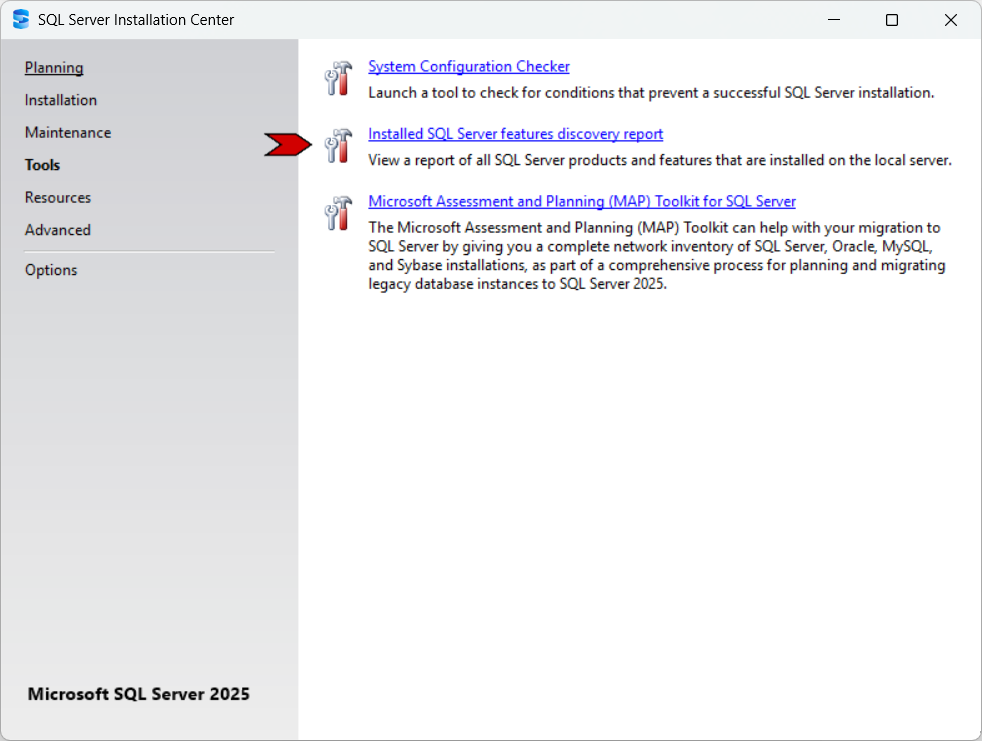
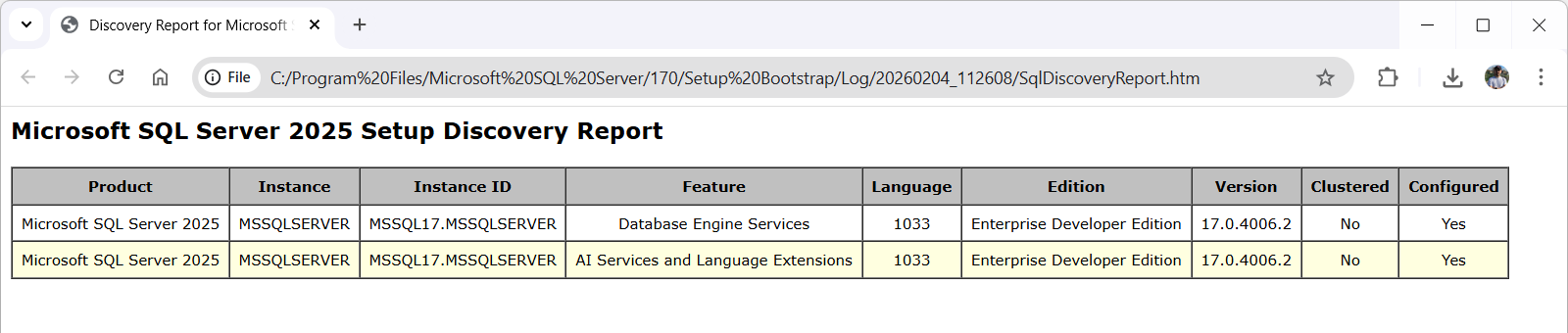
This method is slower and more manual, but it is useful when you need a full picture of what exists on a server.
It is most relevant when:
- Auditing installed SQL Server components
- Preparing for version or edition upgrades
- Reviewing legacy or multi-feature installations
- Verifying feature presence before change work
For upgrade and migration planning, understanding what is installed can be just as important as knowing which version is running.
Choosing the Right Method
In practice, most DBAs rely on queries for day-to-day work. The other methods exist for when access or context is different.
- Quick interactive check → SSMS Object Explorer
- Reliable verification and automation →
SERVERPROPERTYquery - Restricted or broken access → error log
- Installation and feature inventory → Feature Discovery Report
Most day-to-day DBA work relies on queries. The other methods exist for when access or context is different.
Staying Current
Microsoft releases SQL Server updates on a regular cadence, typically as cumulative updates rather than monthly patches.
When validating your version or planning updates, always cross-check against Microsoft’s official release and download page:
https://learn.microsoft.com/en-us/troubleshoot/sql/releases/download-and-install-latest-updates
At the time of writing, the example screenshots in this post show a SQL Server 2025 instance running the latest available cumulative update.
Final Notes
Checking the SQL Server version is simple, but it underpins many operational decisions.
It affects security, supportability, and how quickly problems can be resolved. When incidents escalate or Microsoft support becomes involved, having accurate version information immediately available keeps focus on the problem rather than the environment.
Confirm what is running, understand where it sits in the support lifecycle, and make changes with that context in mind.
Leave a Reply