
When troubleshooting connectivity issues, it’s often not enough to test whether a remote port is reachable. You also need to know what is actually listening on a port locally, or whether anything is listening at all.
This post focuses on the local side of the equation, what is listening on the machine itself and which process owns the port.
Checking listening ports answers a different question than network tests. Reachability tells you whether traffic can get to the server. Listening ports tell you whether something is there to receive it.
On Windows, there are a couple of simple and reliable ways to check which services are bound to specific TCP or UDP ports. This is useful when:
- Verifying which application owns a port
- Checking whether a service is running and listening
- Investigating unexpected or suspicious open ports
- Confirming configuration during incident response
This post covers two practical methods that work well in real environments and are commonly used during day to day troubleshooting.
Using Resource Monitor (Built-in Option)
Resource Monitor is built into Windows and provides detailed visibility into network activity, including listening ports.
It’s usually the quickest option when you want to confirm what is listening locally without installing anything.
👉 Microsoft Docs: Resource Monitor overview
Opening Resource Monitor
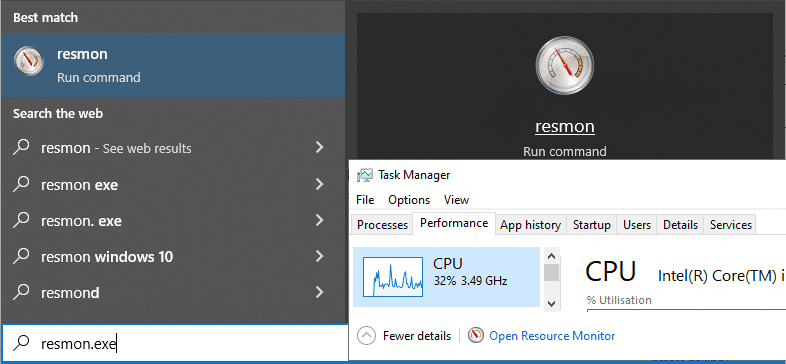
You can open Resource Monitor in a few ways:
- Press Win + R, type
resmon.exe, press Enter - Search for Resource Monitor in the Start menu
- Open Task Manager, go to the Performance tab, then click Open Resource Monitor
Viewing Listening Ports
Once Resource Monitor is open:
- Go to the Network tab
- Expand the Listening Ports section
You’ll see a list of active TCP and UDP ports, including:
- Local port number
- Protocol (TCP or UDP)
- Owning process
- Process ID (PID)
This makes it easy to confirm whether a service is actually listening and which executable is responsible for the port binding.

This view allows you to confirm port ownership immediately without leaving the server or installing additional tools.
Using TCPView (Sysinternals)
If you need more control, filtering, or ongoing visibility, TCPView is often the better tool.
TCPView is a lightweight Sysinternals utility that displays all TCP and UDP endpoints on a system in real time. It’s especially useful if you’re reviewing a lot of connections or narrowing down specific ports or processes.
👉 Microsoft Docs: TCPView (Sysinternals)
Why Use TCPView
TCPView is useful when:
- You need search and filtering
- You’re dealing with many active connections
- You want a clearer view than Resource Monitor provides
- You’re investigating unexpected listeners
It shows:
- Local and remote addresses
- Ports
- Connection state
- Owning process
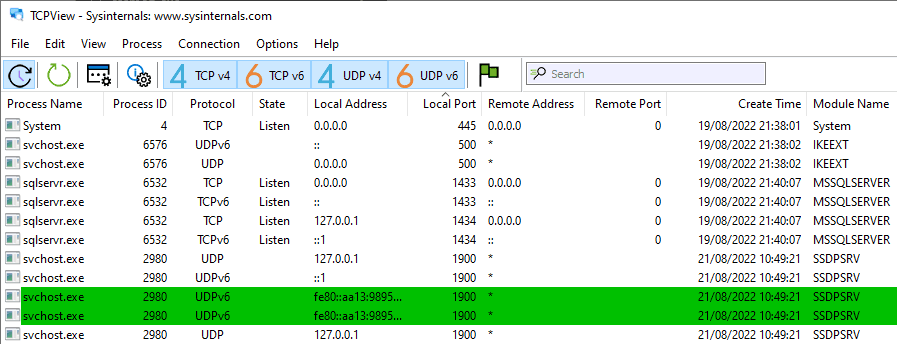
TCPView is particularly useful when multiple services are binding dynamically or when ports appear and disappear quickly during startup or failover scenarios.
Because it’s portable and quick to run, it’s a tool many Windows, DBA, and infrastructure admins keep handy.
What About Wireshark
Wireshark is a powerful tool, but it solves a different problem.
Wireshark captures and inspects network traffic. It does not tell you which process is listening on a port in a clean or authoritative way. For that reason, it is rarely the right first tool for checking listening ports.
Wireshark is appropriate when:
- You need to see packets arriving or leaving the server
- You suspect traffic is being dropped or altered mid path
- You are debugging protocol level behaviour
For basic port ownership and listening checks on Windows, Resource Monitor and TCPView are faster, clearer, and safer choices.
Choosing the Right Tool
- Resource Monitor
Best for quick, built-in checks on a local machine. - TCPView
Better for deeper inspection, filtering, and longer troubleshooting sessions.
Both tools are safe, reliable, and commonly used in production environments.
Final Notes
When diagnosing connectivity issues, it’s important to check both sides:
- Can the client reach the destination port?
- Is something actually listening on that port, and which process owns it?
Remote tests answer the first question. Listening port checks answer the second. Using both stops you guessing during incidents.
If you need the client-side test, see Testing Remote Server Port Connectivity with PowerShell.
For SQL Server port defaults and endpoint context, see SQL Server Default Ports.
If the port is reachable and SQL Server is listening but sessions are landing somewhere unexpected, confirm the server IP and port your SQL session actually connected to. See: How to Get the SQL Server IP Address.
Leave a Reply