
Checking table sizes in SQL Server is a routine DBA task that supports capacity planning, performance troubleshooting, and data retention work.
There are several ways to get this information. Some methods are better suited to automation and reporting, while others are quicker for ad hoc checks in SQL Server Management Studio.
This post walks through the reliable ways to check table sizes in SQL Server, and when each approach makes sense in practice.
When Table Size Information Is Useful
You usually look at table sizes when:
- A database is growing faster than expected
- You are planning or validating data retention
- Large tables are affecting backups, restores, or maintenance jobs
- Disk space is becoming a constraint
Understanding table size helps you make informed decisions about cleanup, indexing, and storage planning.
T-SQL Script to Get Table Sizes
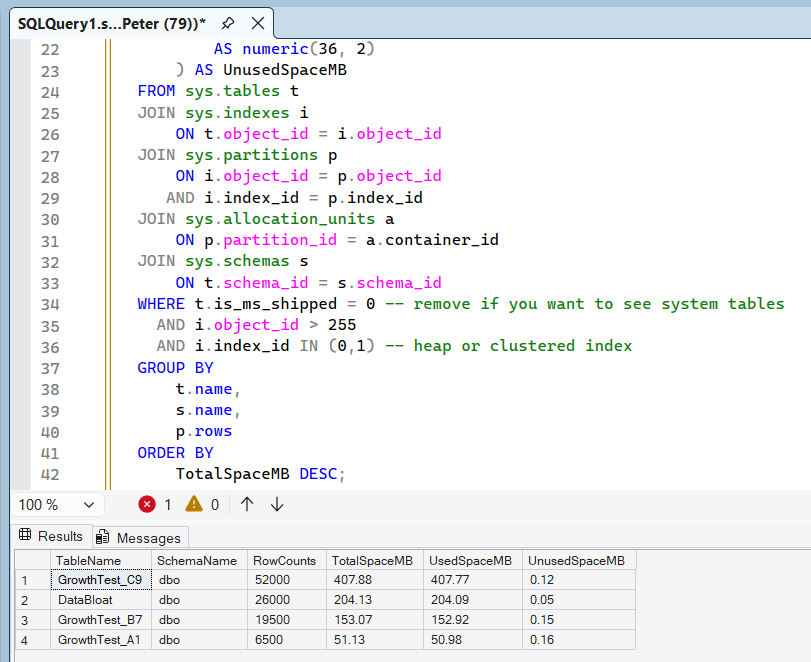
For repeatable checks, automation, or reporting, a T-SQL query is usually the most flexible option.
The query below returns:
- Table name and schema
- Row count
- Total allocated space
- Used space
- Unused space
USE GrowthLab;
GO

-- User tables only (system tables excluded)
SELECT
    t.name AS TableName,
    s.name AS SchemaName,
    p.rows AS RowCounts,
    CAST(
        ROUND((SUM(a.total_pages) * 8) / 1024.00, 2)
        AS numeric(36, 2)
    ) AS TotalSpaceMB,
    CAST(
        ROUND((SUM(a.used_pages) * 8) / 1024.00, 2)
        AS numeric(36, 2)
    ) AS UsedSpaceMB,
    CAST(
        ROUND(
            ((SUM(a.total_pages) - SUM(a.used_pages)) * 8) / 1024.00,
            2
        )
        AS numeric(36, 2)
    ) AS UnusedSpaceMB
FROM sys.tables t
JOIN sys.indexes i
    ON t.object_id = i.object_id
JOIN sys.partitions p
    ON i.object_id = p.object_id
   AND i.index_id = p.index_id
JOIN sys.allocation_units a
    ON p.partition_id = a.container_id
JOIN sys.schemas s
    ON t.schema_id = s.schema_id
WHERE t.is_ms_shipped = 0 -- remove if you want to see system tables
  AND i.object_id > 255
  AND i.index_id IN (0,1) -- heap or clustered index
GROUP BY
    t.name,
    s.name,
    p.rows
ORDER BY
    TotalSpaceMB DESC;
This approach works well when you need:
- Sorted or filtered results
- Repeatable checks across environments
- Data you can log or trend over time
Disk Usage by Top Tables Report in SSMS
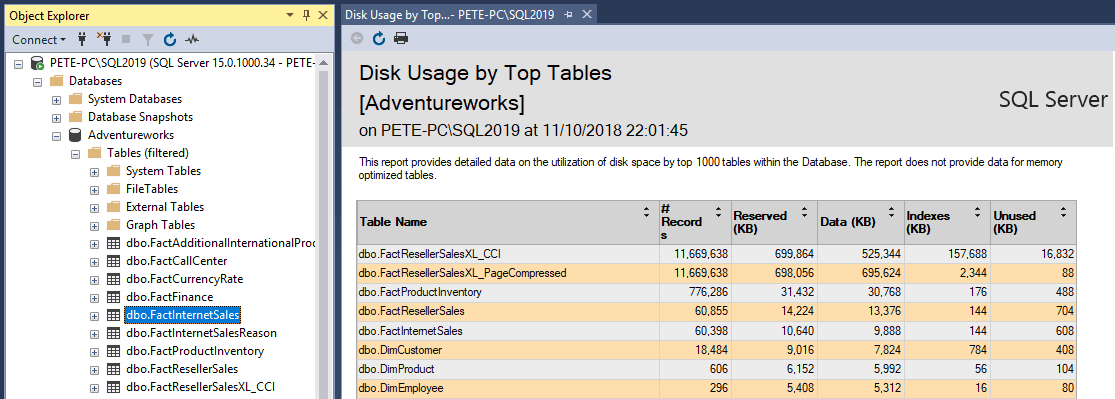
For a fast overview, SSMS includes the Disk Usage by Top Tables report.
This report provides a snapshot of:
- Table size
- Row count
- Index usage
- Space distribution
It is useful when:
- You need a quick answer
- You do not want to run custom scripts
- Someone else needs read-only insight
👉 SSMS Disk Usage by Top Tables Report
Use this when you need a quick visual view of table size and space usage.
Using sp_spaceused for Individual Tables
When you only care about a specific table, sp_spaceused is often the quickest option.
USE Jupiter;
GO

EXEC sp_spaceused '[dbo].[MoonData]';
This returns:
- Reserved space
- Data space
- Index space
- Unused space
It is useful for:
- Spot checks
- Verifying changes after cleanup
- Comparing before and after results
👉 Microsoft Docs: sp_spaceused (Transact-SQL)
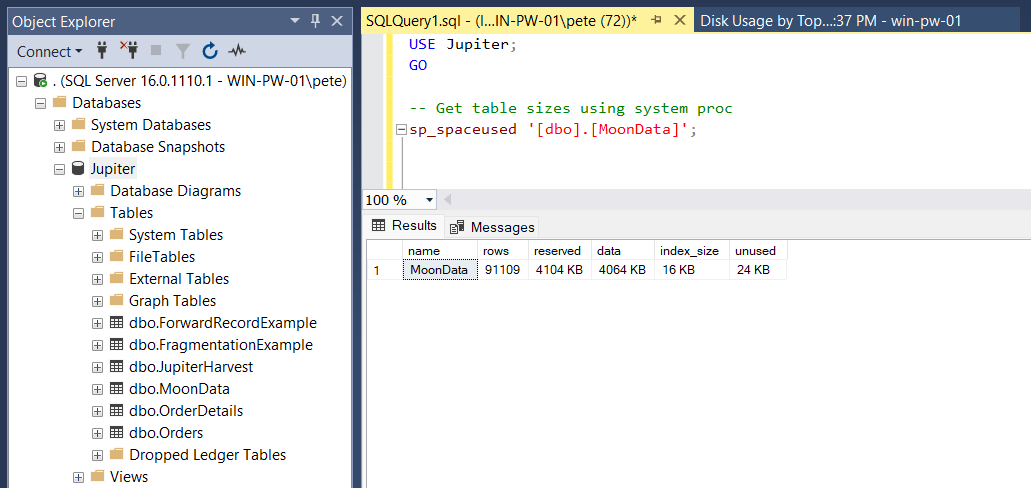
Table Properties in SSMS
If you are already investigating a specific table, SSMS table properties can be useful.
To view this:
- Expand the database in Object Explorer
- Expand Tables
- Right-click a table and choose Properties
- Open the Storage page
This shows:
- Data space
- Index space
- Row count
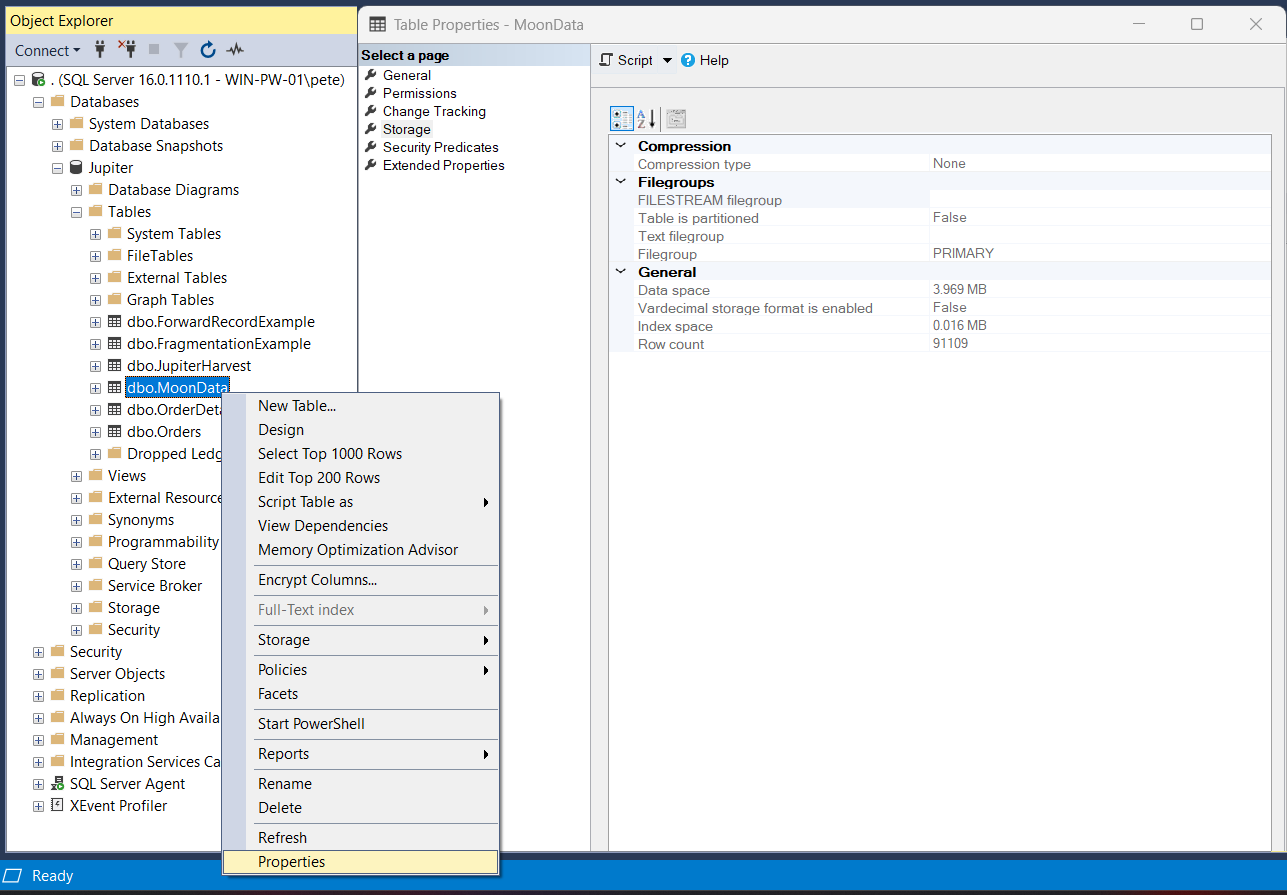
This method is best suited to single-table inspection rather than comparing multiple tables.
Choosing the Right Method
In practice:
- Use T-SQL for automation, monitoring, and reporting
- Use SSMS reports for quick visual checks
- Use sp_spaceused for targeted validation
- Use table properties during object-level investigation
Most DBAs end up using more than one method depending on the situation.
Final Thoughts
Checking table sizes is a small task that feeds into much larger decisions.
Regular visibility into table size and growth makes capacity planning, data retention, and maintenance work far more predictable.
Using the right method for the situation keeps this information easy to access without adding unnecessary overhead.
Leave a Reply