
Seeing a database stuck in Recovery mode usually happens at the worst possible time.
It often appears after a restart, a restore, or an unexpected shutdown, and the immediate question is always the same:
Is this normal, or do I need to intervene?
This post explains what recovery mode actually means, how to tell whether progress is being made, and what actions are safe when it is not.
What Recovery Mode Means
When SQL Server brings a database online, it runs crash recovery to make sure the database is transactionally consistent.
Internally, SQL Server:
- Scans the transaction log to determine what needs attention
- Reapplies committed changes not yet written to disk
- Rolls back uncommitted work
This is automatic and unavoidable.
A database cannot be accessed until recovery completes.
Those three steps are the three phases SQL Server reports as it works: analysis, redo, then undo. That is why the error log counts “Phase 2 of 3” rather than one flat percentage, and the difference matters while you wait: undo is the phase that rolls back uncommitted work, and it is the one that can take far longer than the other two.
In most cases, Recovery mode is temporary and expected.
First, Which State Is It Actually In?
“In Recovery” is a label in Object Explorer, not a state name, and several genuinely different situations wear it. Before deciding whether to wait or to act, ask the server what it actually thinks:
SELECT name,
       state_desc,
       recovery_model_desc
FROM   sys.databases
ORDER  BY CASE WHEN state_desc = 'ONLINE' THEN 1 ELSE 0 END, name;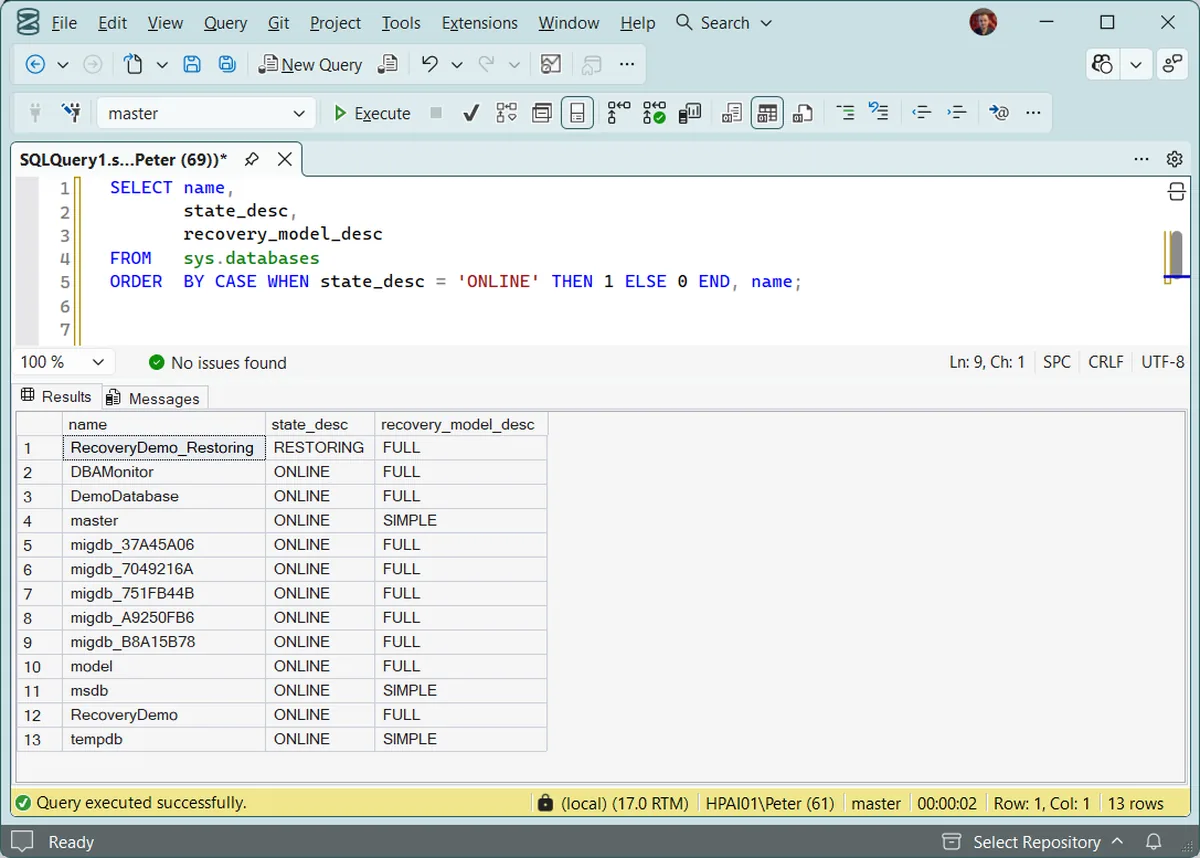
The value in state_desc decides everything that follows:
RECOVERINGRECOVERY_PENDINGRESTORINGNORECOVERY and is waiting for the rest of the sequence. This is the state most often mistaken for the one above. Act when the restore sequence is genuinely finished. Then run RESTORE DATABASE … WITH RECOVERY.SUSPECTONLINEThe distinction that matters most is RECOVERING against RECOVERY_PENDING. The first is work in progress, and interrupting it is the worst thing you can do. The second is stalled before it started, and waiting achieves nothing at all.
Is Recovery Actually Progressing?
Before touching anything, check whether recovery is still moving forward.
There are two places to look, and Object Explorer is neither of them.
The error log reports recovery as it happens. Filter it rather than reading the whole thing:
EXEC sp_readerrorlog 0, 1, N'Recovery of database';An entry gives you the percentage, the phase and an estimate:
Recovery of database 'DBAMonitor' (5) is 1% complete
(approximately 11 seconds remain). Phase 2 of 3.
This is an informational message only. No user action is required.
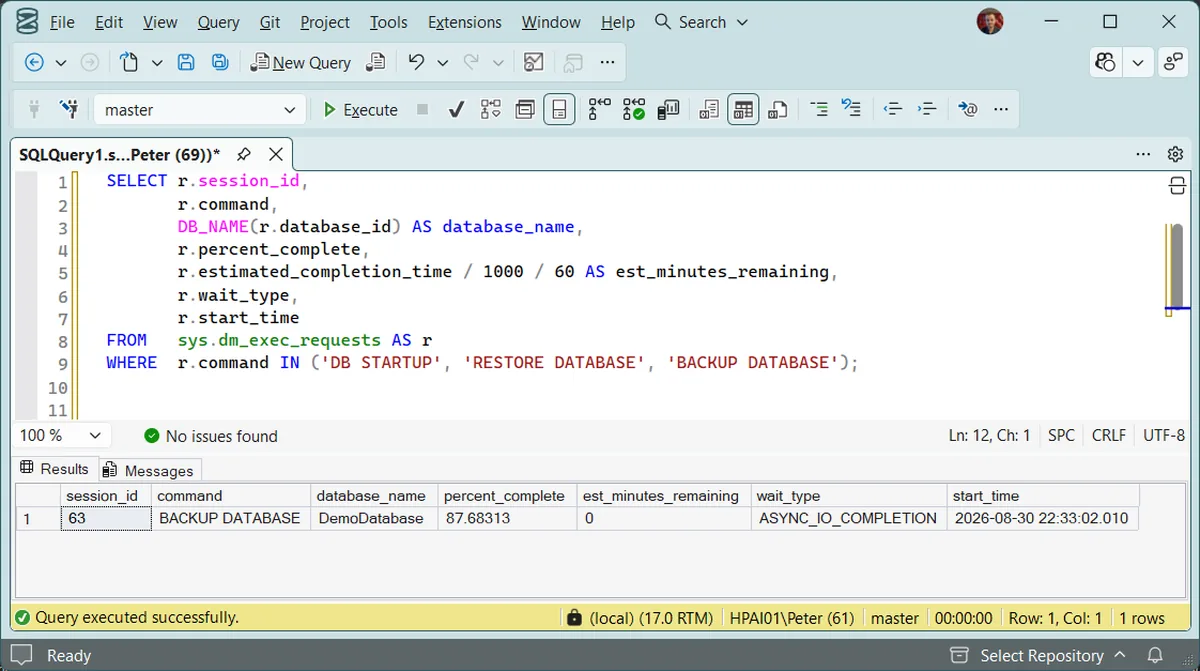
The second place is a live query, which is more useful because you can run it repeatedly and watch the number move. Crash recovery runs under the command DB STARTUP, which is easy to miss if you only look for restores:
SELECT r.session_id,
       r.command,
       DB_NAME(r.database_id) AS database_name,
       r.percent_complete,
       r.estimated_completion_time / 1000 / 60 AS est_minutes_remaining,
       r.wait_type,
       r.start_time
FROM   sys.dm_exec_requests AS r
WHERE  r.command IN ('DB STARTUP', 'RESTORE DATABASE', 'BACKUP DATABASE');
Run it twice, a minute apart. If percent_complete has moved, recovery is working and the only correct action is to wait.
Widen that list if what you are waiting on is a rollback. Microsoft documents percent_complete as reporting for RECOVERY, RESTORE DATABASE, ROLLBACK and several DBCC commands in sys.dm_exec_requests. A transaction that was killed and is now undoing runs as ROLLBACK, not as DB STARTUP, so add both to the IN list when the undo phase is the thing you are watching.
Do not lean on est_minutes_remaining. Microsoft now documents estimated_completion_time as internal only, and it will sit at 0 while there is obviously work left, as it does in the capture below at nearly 88 percent through a backup. The percentage moving between 2 runs is the signal. The estimate is not.
If progress messages are appearing, do not interrupt recovery.
Stopping and restarting the process almost always makes things worse.
If progress has clearly stopped for a long period, further action may be required.
Recovery vs Restoring (A Common Confusion)
Recovery mode is often confused with a database being mid-restore.
If a database was restored using no recovery, SQL Server is waiting for the restore sequence to be completed.
In that case, the fix is simple:
USE master;
GO

RESTORE DATABASE [YourDatabaseName] WITH RECOVERY;
This finalises the restore and brings the database online.
If this command fails, active connections or missing restore steps are usually the cause.
When Recovery Appears Stuck
If recovery is not progressing and no updates are logged, there are only a few safe options.
The advice you will find most often — force the database offline and back online to “restart” recovery — does not work. SQL Server refuses the statement:
ALTER DATABASE [YourDatabaseName] SET OFFLINE WITH ROLLBACK IMMEDIATE;A database that is mid-recovery is not available for ALTER DATABASE either, and that refusal is the engine protecting you. The advice also contradicts the rule two sections above: taking a database down mid-recovery discards the redo and undo work already done, and the next startup begins it again from the beginning. On a long rollback that converts a wait into a longer wait.
What is usually happening when recovery looks frozen is the undo phase working through one large uncommitted transaction — an unfinished delete, or a job killed mid-run. The percentage crawls because rolling that back is real work. It cannot be skipped, and restarting the service does not avoid it.
So the honest list of options is short. Let it finish. If it genuinely is not progressing across repeated checks, and the state is RECOVERY_PENDING or SUSPECT rather than RECOVERING, then it was never going to finish and you are in a restore situation — go to the backups, not to ALTER DATABASE.
On SQL Server 2019 and later, Accelerated Database Recovery exists to make that undo phase near-instant, and it is the only real preventative here. Worth knowing whether it is on before you need it:
SELECT name, is_accelerated_database_recovery_on
FROM   sys.databases
WHERE  database_id > 4
ORDER  BY name;
Repeatedly restarting SQL Server rarely helps and often extends downtime.
What Recovery Mode Does Not Fix
Recovery will not resolve:
- Corrupt backups
- Disk or storage failures
- Severe transaction log corruption
- Missing restore files
If recovery repeatedly fails or never completes, restoring from a known good backup is usually the only safe outcome.
Frequently Asked Questions
How long should recovery take?
There is no fixed answer, because it depends on how much uncommitted work has to be rolled back rather than on the size of the database. A 2 TB database that shut down cleanly can recover in seconds; a 50 GB one that was killed mid-delete can take hours. That is why the useful question is whether percent_complete is moving, not whether it has been too long.
Can I stop recovery to bring the database up faster?
No. There is no supported way to skip recovery, and the attempts people reach for — restarting the service, taking the database offline — discard the work already done, so the next startup begins again from the beginning. Every interruption makes the wait longer.
The database says RESTORING but nobody is restoring anything. Why?
Almost always because a restore was run with NORECOVERY, which deliberately leaves the database ready for more log backups to be applied. It will sit there indefinitely until someone finishes the sequence with RESTORE DATABASE … WITH RECOVERY.
What is the difference between RECOVERING and RECOVERY_PENDING?
RECOVERING means recovery is running. RECOVERY_PENDING means SQL Server could not start it, usually because a data or log file it needs is missing or unreadable. Waiting fixes the first and does nothing whatsoever for the second, which is why reading state_desc before acting matters so much.
Will Accelerated Database Recovery fix a database that is stuck right now?
No. ADR changes how the undo phase works, so it has to be enabled before the event to help. It is worth turning on where long rollbacks have hurt you before, but it is a preventative, not a rescue.
Final Thoughts
Recovery mode is not an error in itself. Most of the time it is SQL Server doing exactly what it should, just slower than you would like, and the state name at the top of this page is what tells you which of those two you are looking at.
The real risk is intervening too early. Observe first, and act only once you are confident recovery is not moving — because almost every shortcut for hurrying it along starts the work again from the beginning.
Which of these you need depends on the state you found at the top of this page.
- Database Marked SUSPECT (Error 926), its state table names SUSPECT and currently routes nowhere for it
- Database Cannot Be Opened, It Is in the Middle of a Restore, the page for when the state turned out to be RESTORING rather than RECOVERING.
- Backup Failed or the Restore Is Stuck, the incident that leaves a database here, with the percent complete reading
- Check Backup and Restore Progress, watch a long restore the same way you watched recovery.
- How to Restore a Database in SQL Server, where RECOVERY_PENDING and SUSPECT both end up.
- Backup and Recovery Scripts, coverage, chain integrity and history checks, so the next one is caught earlier.
- Get Last Database Restore Date and Time, confirm whether a restore really did run, and when.
- Recovery Model Audit, which databases are in FULL recovery without the log backups that model assumes.
Leave a Reply