
Testing connectivity to remote server ports is a basic skill every DBA should have. Not just DBAs either, anyone running production systems needs to be able to answer one simple question quickly:
Can this server actually reach that server on this port?
This post shows two reliable ways to test whether a remote port is reachable using PowerShell, covering both modern Windows versions and older, legacy systems.
If one server needs to talk to another, network line of sight must exist. That means traffic is allowed to flow from source to destination on the correct port. If that flow is blocked, the application will fail regardless of how correct the configuration looks.
PowerShell gives us a cleaner, faster alternative to tools like PuTTY or telnet for this type of check, and it’s something I use regularly during real production incidents.
If you are unsure which ports SQL Server should be using, see SQL Server Default Ports before testing connectivity.
Common Ports DBAs Should Recognise
Some ports come up so often in DBA life that they’re worth remembering:
- SQL Server Database Engine, 1433
- SQL Server Browser, 1434
- Availability Group or Mirroring Endpoint, 5022
- PostgreSQL, 5432
- MySQL, 3306
- Oracle, 1521
- Amazon Redshift, 5439
You don’t need to memorise everything, but being able to recognise these quickly helps narrow down connectivity issues much faster.
Check a Remote Port Using Test-NetConnection
On modern versions of Windows and PowerShell, this is the simplest and best option.
Test-NetConnection is built-in, easy to remember, and gives you a clear success or failure result.
# Test if a remote server can be reached on a specific port
Test-NetConnection -ComputerName lab-sql1.whyte.net -Port 1433

# Same test using IP address and shorthand syntax
tnc 172.31.18.100 -Port 1433
If the test succeeds, you’ll see:
TcpTestSucceeded : TrueIf the command hangs for around 60 seconds and then returns False, the connection is not working.
This usually means one of two things:
- The port is blocked somewhere along the path
- Nothing is listening on the destination server
This test confirms network reachability only. It does not validate application health, authentication, or permissions.
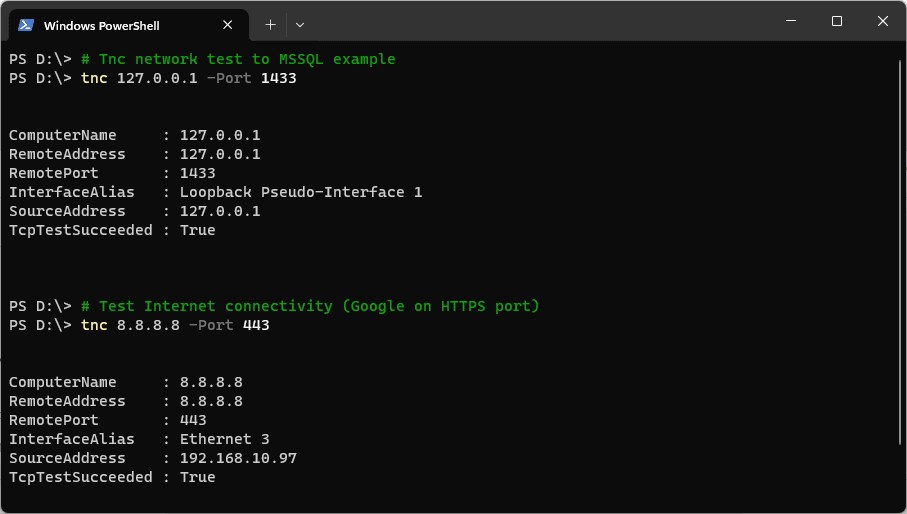
A successful result confirms the port is reachable at the network level.
Testing Ports on Older Windows Versions (Pre Server 2012)
If you’re working on older systems, such as Windows Server 2008 R2, Test-NetConnection does not exist.
In those cases, a simple TCP client test still works well and gives a clear answer.
# Test remote port connectivity on older Windows versions
$IpAddress = Read-Host "Enter the IP address"
$Port = Read-Host "Enter the port number"

$TcpClient = New-Object Net.Sockets.TcpClient
$TcpClient.Connect($IpAddress, $Port)

if ($TcpClient.Connected) {
    "Port $Port is open and reachable"
}
else {
    "Port $Port is not reachable"
}
If the connection fails, PowerShell will usually throw an exception or return a closed result. This is expected behaviour when no service is listening or traffic is blocked.
In the example below, port 1433 fails because SQL Server is not installed or not listening on the target machine.
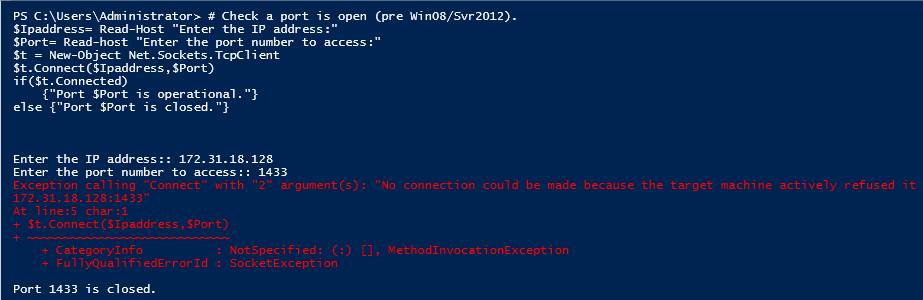
If the Port Test Fails, What to Check Next
A failed port test doesn’t automatically mean “the network is broken”. It just tells you traffic is not making it through.
Things I normally check next:
- Service listening
Ensure something is actually listening on that port on the destination server. - Local firewalls
Windows Firewall rules on both source and destination servers. - Network controls
Firewalls, ACLs, security groups, or cloud networking rules. - Name resolution
Test using both hostname and IP address to rule out DNS issues.
In more complex environments, traffic may pass through multiple firewalls, NAT gateways, or load balancers. This test gives you a clear starting point before involving network or cloud teams.
Final Notes
For day-to-day DBA work, Test-NetConnection is usually all you need. It’s fast, reliable, and avoids reaching for heavier tools unless you really need them.
When troubleshooting production issues, being able to quickly prove whether a port is reachable can save a lot of time and unnecessary guesswork.
If you need to confirm what is actually listening on the destination server, see How to Check Listening Ports on Windows.
If the port is reachable but connections still fail, confirm what the SQL Server session actually connected to on the server side (IP and port). See: How to Get the SQL Server IP Address.
A failed port test tells you something is blocked. These narrow down what.
- SQL Server Ports: 1433, Dynamic Ports and Firewall Rules, the port may not be the one you tested.
- How to Check Listening Ports on Windows, confirm what the server is actually listening on.
- Enabling TCP Connections in SQL Server, the common cause when nothing is listening.
Leave a Reply